
Thumbframe · Updated 24 October 2026
YouTube thumbnail preview tool for desktop, mobile and dark mode
Thumbframe puts your thumbnail, title and channel name into four feed layouts, in light and dark, so you can see what a viewer scrolls past before you publish. It runs in your browser, needs no account, and the free tier previews one thumbnail at a time.
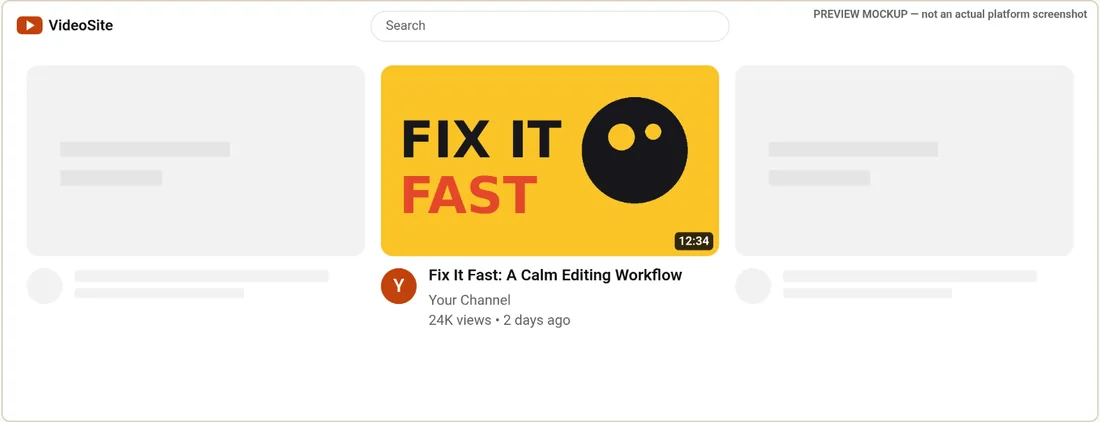
What you can preview
- 01Desktop home grid Your thumbnail in the middle of a three-across row, so you see it next to other cards rather than alone on a canvas.
- 02Search results A wide thumbnail on the left with title, channel and a views line on the right. The title wraps to two lines and is cut after that.
- 03Mobile feed A full-width card in a narrow column, with title and channel under the image.
- 04Sidebar "up next" A small thumbnail beside a two-line title, the layout where text and faces get smallest.
- 05Light and dark Every layout in both themes, because a thumbnail that works on white can disappear on near-black.
Try it in a minute
- Open the tool. It shows a sample image until you add your own.
- Add a 16:9 image. Other ratios are centre-cropped to 16:9 in the mockups.
- Type your real title, channel name and video length. The length is drawn as a badge over the bottom-right corner in every layout.
- Step through the four layouts and both themes. Look at the small ones first.
- Read the legibility notes under the preview. They flag low contrast, text that looks too small, a busy image and detail under the duration badge.
Fill in the text, not just the picture
People judge a card by image, title and channel together. Fill in the real title: the mockups cut it after two lines, which is roughly what feeds do, so you can see whether it still makes sense when shortened. Put in the real duration too, because the badge covers the corner of the image in every layout.
What this preview is not
- Not a screenshot of YouTube. The layouts are generic approximations, labelled "preview mockup", and use no platform logos. Sizes on a real device depend on window width, screen and app version.
- No TV or tablet layout. Thumbframe has desktop and mobile-style layouts only. For a screen viewed from across a room, the 168 px small preview and the contrast note are a rough stand-in for "does it still read when it is small", not a TV simulation.
- No 9:16 Shorts layout. A vertical image is centre-cropped into a 16:9 frame. See how thumbnails look across YouTube surfaces for what YouTube Help says about Shorts thumbnails.
- No performance data. It cannot tell you which thumbnail gets more clicks. For that you need a real test; see A/B testing without TubeBuddy.
If you want the manual methods as well (shrink test, screenshot mockup, private upload) and a pre-publish checklist, the guide How to preview a YouTube thumbnail before you publish covers them.
Frequently asked questions
Is the thumbnail preview tool free?
Yes. The free tier previews one thumbnail at a time in all four layouts and both themes, with all legibility checks. PNG export carries a watermark on the free tier. Pro is a one-time $19 and adds side-by-side comparison of up to four thumbnails and clean exports.
Are my thumbnails uploaded anywhere?
No. Images, title and channel name are processed in your browser with the Canvas API. The only network request the tool makes is when you activate or re-check a Pro license key.
Does it show how my thumbnail looks on a TV?
No. There is no TV layout. The tool offers desktop home grid, search results, mobile feed and sidebar up-next layouts, plus a small 168 px preview and legibility checks.
Is it an official YouTube tool or an exact copy of YouTube?
No. Thumbframe is independent and not affiliated with YouTube or Google. The mockups are generic approximations of common video-feed layouts and are labelled as previews.
Related
- How your thumbnail looks in YouTube search, home and up next
- Test your YouTube thumbnail in dark mode and light mode
- Preview a YouTube thumbnail without uploading the video
- How to preview a YouTube thumbnail before you publish
- YouTube thumbnail size and safe areas (2026)
- Thumbframe: the tool and pricing
- More tools for creators