
Thumbframe · Updated 24 October 2026
Preview a YouTube thumbnail without uploading the video
The usual workaround for seeing a thumbnail in context is to upload the video as private or unlisted and set the thumbnail. It works, but it needs the video to be ready, takes upload time, and uses up thumbnail changes. A local preview lets you check the design first.
Why the private-upload workaround is awkward
- The video must exist. You cannot judge a thumbnail while you are still editing, or for an idea you want to test before filming.
- It does not show feed layouts. Studio and your channel page confirm the file was accepted, not how it looks next to other videos in home or search.
- It uses thumbnail changes. YouTube applies a daily limit on custom thumbnail uploads per channel and says it may vary by country or channel history; the error is "Daily custom thumbnail limit reached". Each version you try by uploading counts toward it. See YouTube Help.
What stays on your device
Thumbframe draws your image with the browser's Canvas API. The image, title and channel name are not sent to Curiofy or anywhere else, and the page has no analytics script. The only network request is a license check when you activate or re-check a Pro key. If you work on thumbnails for a launch or a client, that means an unreleased design is not placed on anyone's server just to look at it. You can confirm this in your browser's network panel.
Steps
- Export a 16:9 JPG or PNG from your editor.
- Open the tool and add it. Other ratios are centre-cropped to 16:9.
- Enter the planned title, channel name and video length.
- Look at the home grid, search, up next and mobile, in both themes.
- Fix what the preview and the legibility notes show, and re-add the new export.
- Only then upload the final file.
What a local preview cannot check
- Whether YouTube accepts the file. Limits depend on the device you upload from, and the formats are JPG and PNG; see thumbnail size and safe areas.
- How the final upload is processed. After publishing, check the live result in Studio once.
- Real traffic. A preview cannot tell you what viewers will click; for that, see A/B testing.
The other manual methods and a pre-publish checklist are in How to preview a YouTube thumbnail before you publish.
Frequently asked questions
Can I see my thumbnail before I upload the video?
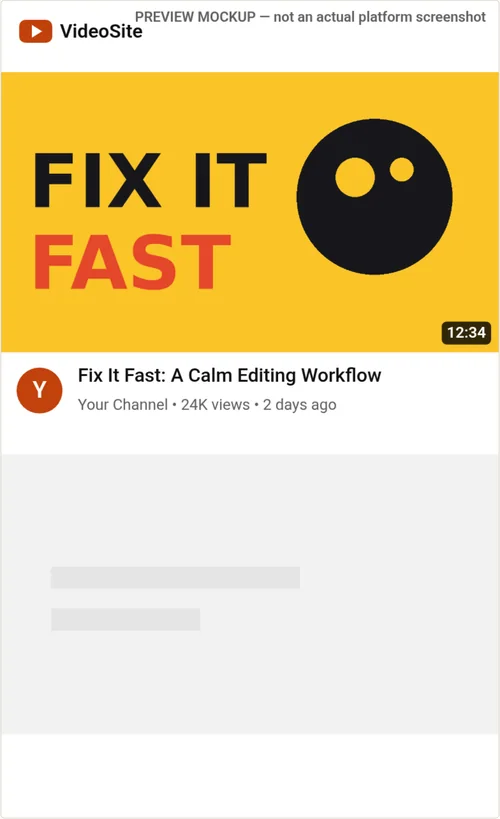
Yes. Thumbframe draws it into home, search, mobile and up-next mockups in your browser, so the video does not need to be uploaded. It only needs your image, a title and a channel name.
Is a thumbnail I add to Thumbframe sent to a server?
No. It is processed locally in your browser. The only request the tool makes is a Lemon Squeezy license check when you activate or re-check a Pro key.
Is there a limit to how many thumbnails I can upload to YouTube per day?
Yes. YouTube Help says there is a daily limit on custom thumbnails per channel, that it can vary by country or channel history, and that you may see "Daily custom thumbnail limit reached". Previewing locally does not count toward it.
Will the preview match exactly what YouTube shows?
No. The mockups are generic approximations labelled as previews. Use them to judge legibility and standing out, and do a final check in Studio after publishing.
Related
- YouTube thumbnail preview tool for desktop, mobile and dark mode
- YouTube thumbnail safe zone checker
- How your thumbnail looks in YouTube search, home and up next
- How to preview a YouTube thumbnail before you publish
- YouTube thumbnail size and safe areas (2026)
- Thumbframe: the tool and pricing
- More tools for creators