
Thumbframe · Updated 24 October 2026
YouTube thumbnail safe zone checker
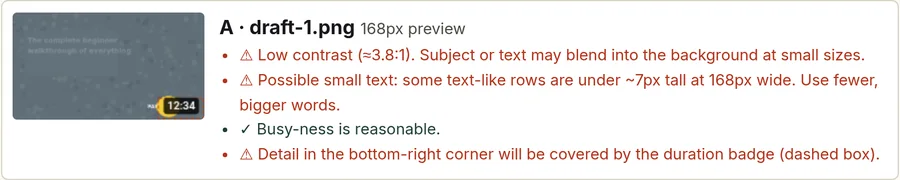
Thumbframe's legibility checks look at four things: contrast, text that looks too small, a busy image, and detail in the bottom-right corner where the duration badge sits. They are heuristics, not verdicts, so this page explains what each one means and when to ignore it.

What each check does
- 01Contrast Compares the darkest and brightest areas of the image as a ratio. A low ratio means the subject or text may blend into the background when shrunk.
- 02Small text Shrinks the image to 168 px wide and looks for rows that resemble lines of text and are very short. It is an edge-based guess; it does not read the words.
- 03Busy-ness Measures how much of the image is fine edge detail. Lots of detail competes for attention at small sizes.
- 04Duration badge corner Looks at the bottom-right area and warns if there is detail there. The dashed box on the preview shows the area, roughly a quarter of the width and a fifth of the height.
What to do about a warning
- Low contrast: darken or lighten the background behind the subject, or add an outline or shadow to text.
- Small text: use fewer, larger words, or a heavier typeface. Retest at 168 px.
- Busy: remove the detail that does not help the click, or blur and darken the background.
- Corner: move text, faces and logos out of the bottom-right area. Keep it for the least important part of the picture.
When a warning is wrong
The checks do not understand your picture. A photo with natural texture in the corner can trigger the corner warning even if nothing important is there, and a design with a deliberately busy background may be fine. A thumbnail with no warnings can still be dull. Use the warnings as a prompt to look again at the small preview and decide.
What it does not check
- It does not read the text, so it cannot tell you what the words say.
- It does not check the thin strip along the bottom edge that can show a progress bar for viewers who started watching, or the margin near rounded corners. Keep a margin there by eye.
- It does not check file size, format or resolution. Those limits are in YouTube thumbnail size and safe areas.
- YouTube does not publish an official safe-zone template, so the dashed box is a sensible margin, not an official line.
Frequently asked questions
Where does the duration badge sit on a YouTube thumbnail?
In the bottom-right corner of the image. Thumbframe draws it in every mockup and marks the area it covers with a dashed box on the small preview.
Is there an official YouTube thumbnail safe zone?
YouTube does not publish an official safe-zone template. The advice is to keep text and faces away from the bottom-right badge and the edges, and to check the thumbnail at small size.
How does the tool decide text is too small?
It shrinks the image to 168 px wide and looks for short rows of edge detail that resemble text. It is a heuristic and does not read the words, so treat a warning as a prompt to look again.
Are my images uploaded for the checks?
No. The checks run locally in your browser using the Canvas API.
Related
- How your thumbnail looks in YouTube search, home and up next
- Test your YouTube thumbnail in dark mode and light mode
- YouTube thumbnail preview tool for desktop, mobile and dark mode
- How to preview a YouTube thumbnail before you publish
- YouTube thumbnail size and safe areas (2026)
- Thumbframe: the tool and pricing
- More tools for creators