
Thumbframe · Updated 24 October 2026
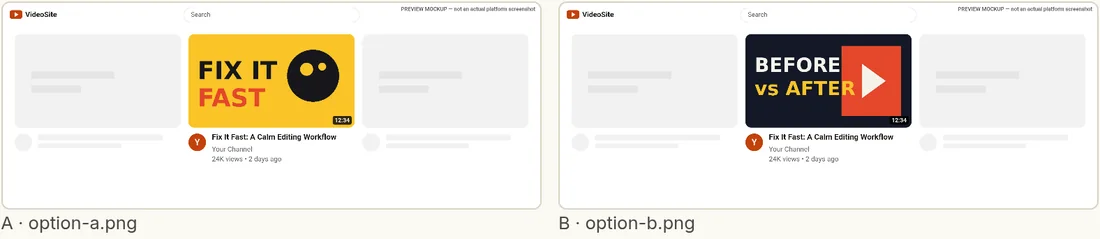
Compare two YouTube thumbnails side by side
Flipping between two image files is a poor way to choose. Put both versions in the same layout, at the size viewers see, and the differences that matter show up quickly. Thumbframe Pro does this for up to four thumbnails at once.
Make the comparison fair first
- Same title, same channel, same duration. Otherwise you are comparing the text around the image.
- Change one idea at a time. If version B has a new background, a new face and new text, you will not know which part helped.
- Same layout and theme. Compare in the home grid first, then in up next and in dark mode.
- Look before you read. Glance for a second, then say which one you noticed first, and only then study the details.
What to compare, in order
- What is it about, at a glance? If you cannot tell in one second, the thumbnail is doing too much.
- Which one reads at small size? Check the 168 px preview and the up-next layout.
- Which one is not hurt by the duration badge? The corner area should be clear.
- Which one works in both themes? Use the Theme switch and look again.
- Which one is different from its neighbours? A different colour or composition than the usual in your topic helps it stand out.
Free tier workaround
On the free tier you can still judge versions one after another: add version A, note what you see in each layout and in the legibility checks, then replace it with version B. It works, but your memory does the comparing. If you are choosing between several versions often, Pro saves the effort.
This chooses candidates; it does not measure clicks
A visual comparison tells you which version is clearer and more distinctive. It does not tell you which one viewers will click. For that, test on real viewers; YouTube Studio's built-in A/B test takes up to three variants, so comparing four in Thumbframe lets you drop one before you start.
Export the comparison
The export button saves a PNG with each version in light and dark layouts and at actual small size, which is handy when someone else has to choose. See sharing thumbnail options with a client or editor.
Frequently asked questions
Can I compare two thumbnails for free?
The free tier previews one thumbnail at a time. You can check each version on its own, but side-by-side comparison of up to four thumbnails needs Pro, a one-time $19.
How many thumbnails can Thumbframe compare?
Up to four at once with Pro.
Will this tell me which thumbnail gets more clicks?
No. It shows how each version looks and flags legibility issues. To find out which gets more clicks you need to test on real viewers, for example with YouTube Studio's A/B testing.
Does the comparison change my images?
No. Your images are only drawn into the mockups in your browser and are not uploaded or altered.
Related
- How to A/B test YouTube thumbnails without TubeBuddy
- Share thumbnail options with a client, editor or team
- YouTube thumbnail preview tool for desktop, mobile and dark mode
- How to preview a YouTube thumbnail before you publish
- YouTube thumbnail size and safe areas (2026)
- Thumbframe: the tool and pricing
- More tools for creators